AVerMedia GC573
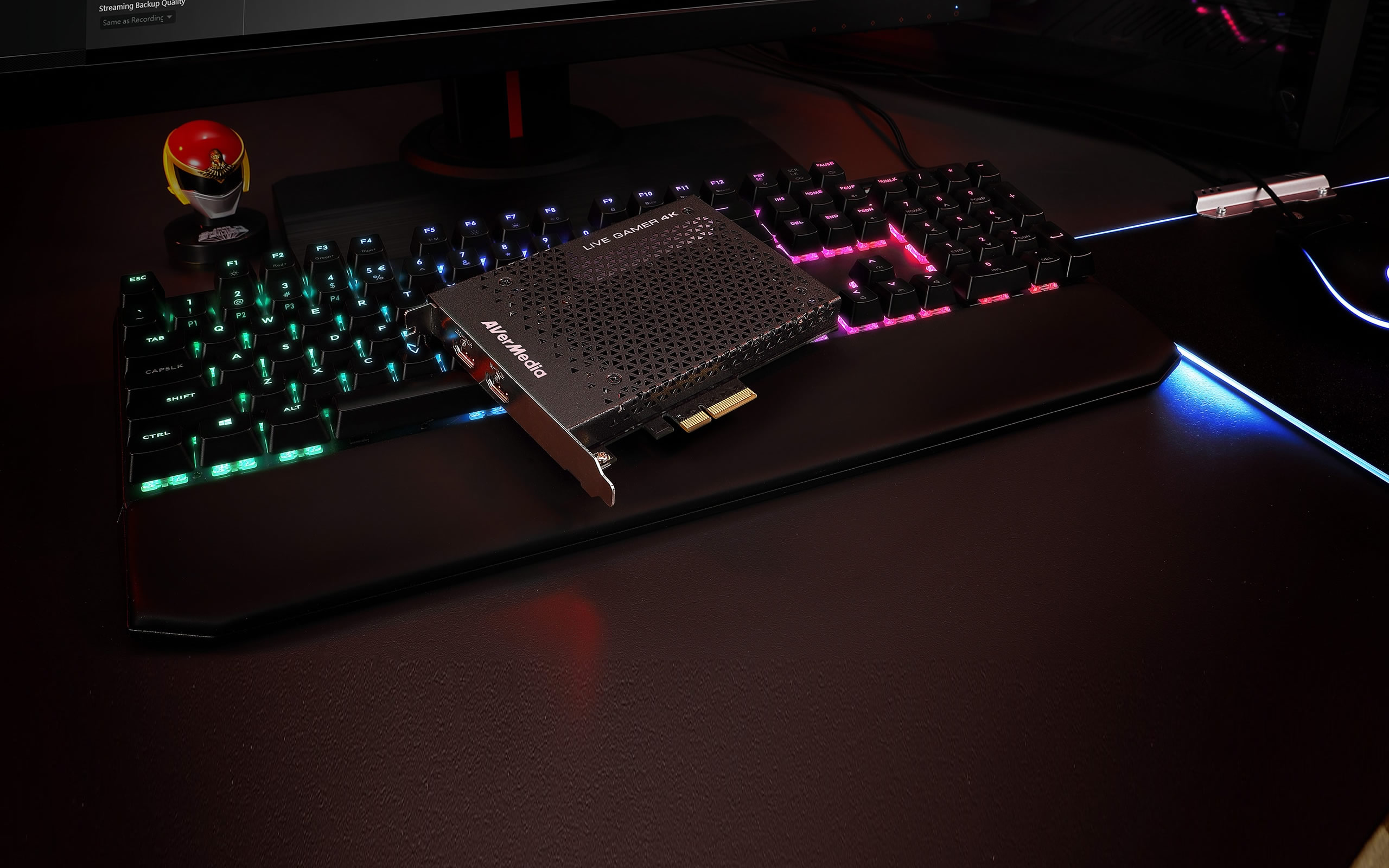
Some days ago I got the new capture card Live Gamer 4K from AVerMedia.
In this post I will show what I did to be able to use the card via pass-through.
Gaming rig:
- CPU: Intel i7 7700k @5.2 GhZ (under custom water loop)
- Mobo: ROG MAXIMUS IX FORMULA
- RAM: 32 GB
- GPU: Nvidia GTX 1080
- Display: (240Hz) Zowie XL2546
Streaming rig:
- CPU: Intel i7 7700
- Mobo: MSI Z270 GAMING PRO
- RAM: 16 GB
- GPU: Nvidia GTX 1060
- Display: Benq XL2420T
Why pass-through?
Well, the first setup I tried was the classic screen duplication via Nvidia Control Panel.
However the resulting video had some minor tearing which I didn’t like very much.
I am currently in contact via AVerMedia support to find an optimal solution for screen duplication technique.
However at the moment using pass-through is the only way to record/stream butter smooth videos, with no tearing at all.
I am pretty happy about that: I can use my 240Hz gaming monitor and record what’s happening on the screen with almost no compromise.
Setup:
The first thing I noticed, is that when the streaming PC is off, the pass-through is not working. I don’t know if that’s by design or if it depends on my streaming PC configuration.
That’s not very good because I’d like to use my gaming PC also when the streaming machine is turned off.
As I said, AVerMedia support is very helpful and we are in contact to share experience / find solutions. The solution I found is however very practical.
This is what I did:
- connected my gaming GPU to gaming monitor via DisplayPort and set it to “Primary display”
for the sake of completeness: I also have my second monitor connected to my gaming GPU, via DisplayPort
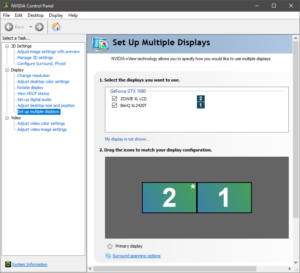
. - connected my gaming GPU to the capture card input port, via HDMI 2.0 cable
after this step, a new monitor entry appeared in Nvidia Control Panel, called “DisplayAdapter”
. - connected the capture card output port to my gaming monitor, via HDMI 2.0 cable
. - after this step, the “DisplayAdapter” entry was gone, replaced by “AVT GC573”
. - I unchecked the “Zowie XL LCD” entry, and set the “AVT GC573” to “Primary display”
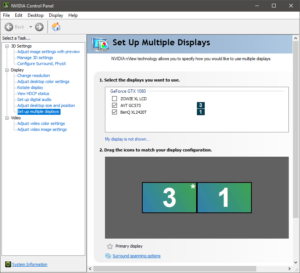
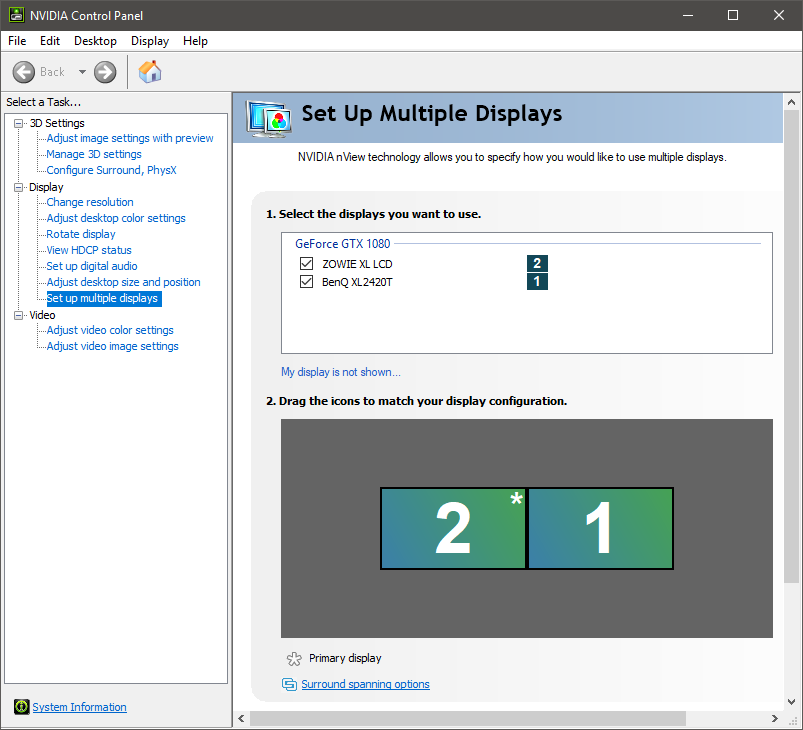
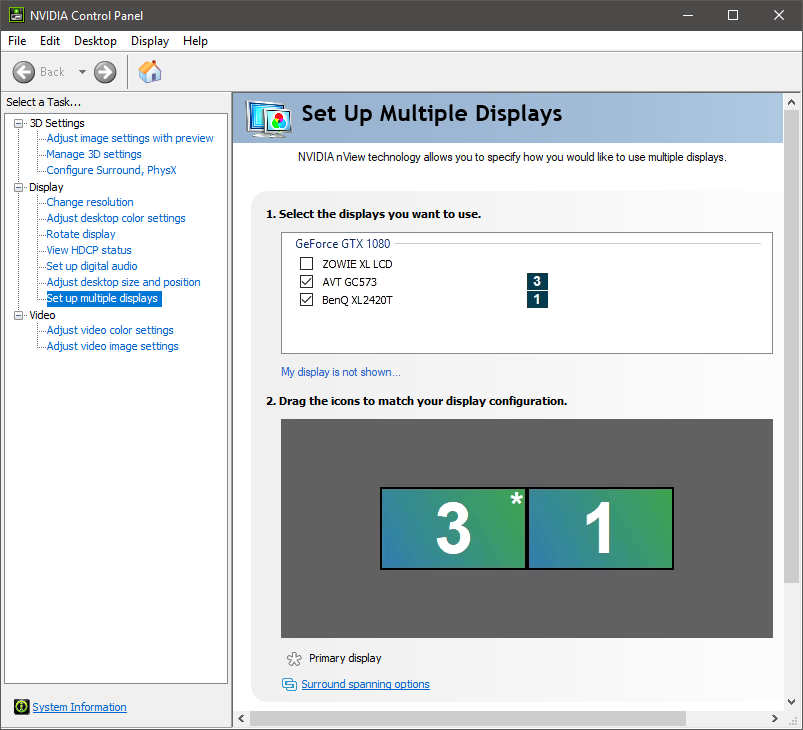
That’s it!
After that, I hit Apply in Nvidia CP dialog, and my gaming display automatically switched to HDMI input source.
If I turn off my streaming machine, the “Zowie XL LCD” entry will automatically re-enable itself, and my gaming display will again switch automatically to DisplayPort input source.
A similar process will happen if I turn on my streaming machine after my gaming machine is already running, all automatically, with no user interaction required:
- “Zowie XL LCD” will be turned off in Nvidia CP
. - “AVT GC573” will popup in displays list, qualified as “Primary display”
. - my gaming display will switch to HDMI input source
Below a sample video I’ve recorded on my gaming PC, where you can see the whole process of activation/deactivation which is triggered when I power on/off my streaming machine. Flickering and black screens are normal and not a rendering issue: